Your ,all in one place.
Run a workshop, hackathon, or any group event. Share materials, present slides, and collect feedback.
How it works
Before the session
Set up the room
Sign in with Google, create a room, and lay out the tables. Add activity links and save the map as a preset for your next session.
During the session
Run the session
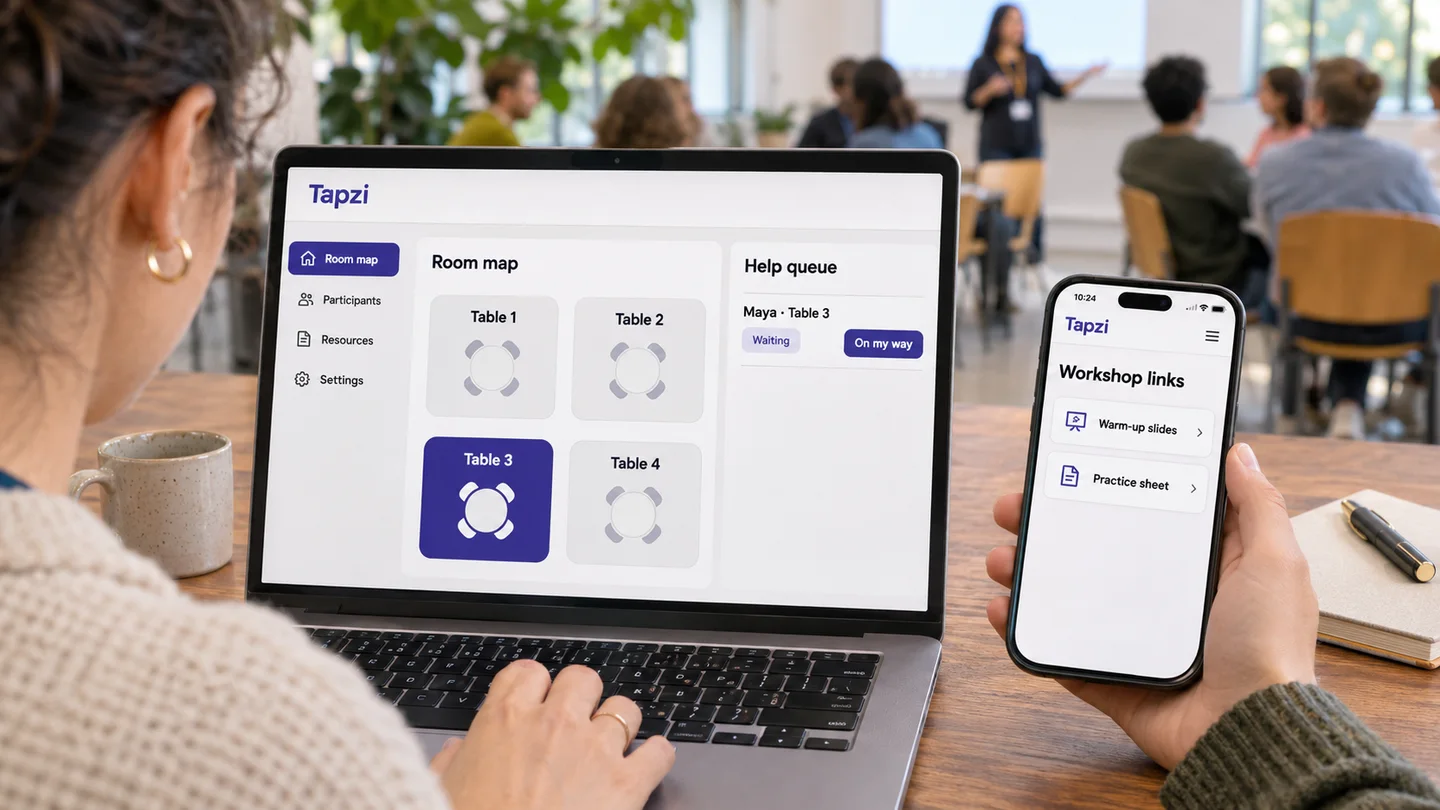
Open the room and share its join link, QR code, or six-character code. People can follow slides, open resources, and ask for help from their table.
After the session
Hear how it went
Set up a survey in your hosted room. When the session closes, participants can give feedback and you can review responses in the dashboard.
Explore the tools
Example session
- Plants, 12 responses
- Faces, 7 responses
- Buildings, 4 responses
- Pets, 3 responses
- Food, 2 responses
Maya asks for help from Table 3.
Help request
“I’m stuck on step 3.”
Ready to send
Room map
- Shape warm-upPDF · Shared now
- Sketching referenceLink
- Practice promptsPDF
- Maya
Where can I find the warm-up sheet?
- Organizer
Open Materials. I’ve highlighted it at the top.
- How clear were the instructions?
- What helped you most?
- “Seeing a simple example before we started.”
Bring your group together
Get your first room ready- Classes and workshops
Hand out lesson materials and see who needs help.
- Team training
Present onboarding slides and collect feedback afterward.
- Clubs and community groups
Give members one link for activities and discussion prompts.
FAQ
Back to topHow do I set up a room?
Open the organizer dashboard and choose Sign in with Google. Create a room, add at least one table, and save the map.
Add your materials under Materials. Select Open room to get the join link, QR code, and six-character code. Try the invite from a phone before people arrive.
How do I join a session?
Open the host’s link, scan their QR code, or enter their six-character room code on this page. Participants can join without an account or an app.
If your host offers a survey, open the original link within seven days after the session in the browser you used to join.
How does the help queue work?
Participants can choose their table on the map or type their location, explain what they’re stuck on, and send a request. Keep the request page open for updates.
Hosts select View on map to find the table, On my way to notify the participant, and Mark resolved once they’ve helped.
Can I run more than one session?
Yes. Create separate rooms for different sessions, with a map, materials, and join code for each. Save a map as a preset to reuse it later. Reopening a room generates a new invite.
What can I share with participants?
Share links to handouts and activities, present PowerPoint slides or PDF pages live, or start a word cloud so participants can respond from their phones.
What if I can’t join or my connection drops?
Check your Wi-Fi or mobile data. If the QR code won’t open or the code is rejected, ask your host to confirm the room is open and resend the current link or code.
If you’re already in the session, keep the page open while it reconnects. Use Retry request if your help request couldn’t be confirmed. If you still can’t connect, ask your host directly.